Generate Your First Image
In this tutorial you’ll install Thumper-Run, set up ComfyUI, and generate your first AI image — all in under 10 minutes (plus download time).
| GPU | VRAM | Install Time | Gen Time |
|---|---|---|---|
| RTX 4090 | 24 GB | ~3 min | ~5s |
| RTX 3060 | 12 GB | ~5 min | ~20s |
| RX 7900 XT | 20 GB | ~5 min | ~12s |
| AMD 780M (APU) | Shared | ~8 min | ~90s |
| CPU only | N/A | ~8 min | ~5 min |
Step 1: Install Thumper-Run
Download the desktop app for your platform. No account or signup needed.
Linux
# Download the AppImagewget https://thumper.run/download/linux/thumper-run.AppImagechmod +x thumper-run.AppImage./thumper-run.AppImage
macOS
Open the .dmg from the download page, drag to Applications, then right-click → Open on first launch.
Windows
Run the .exe installer from the download page. If Windows Defender flags it, click "More info" → "Run anyway".
Step 2: Install ComfyUI
ComfyUI is a node-based image generation tool. It’s the most flexible option in the catalog.
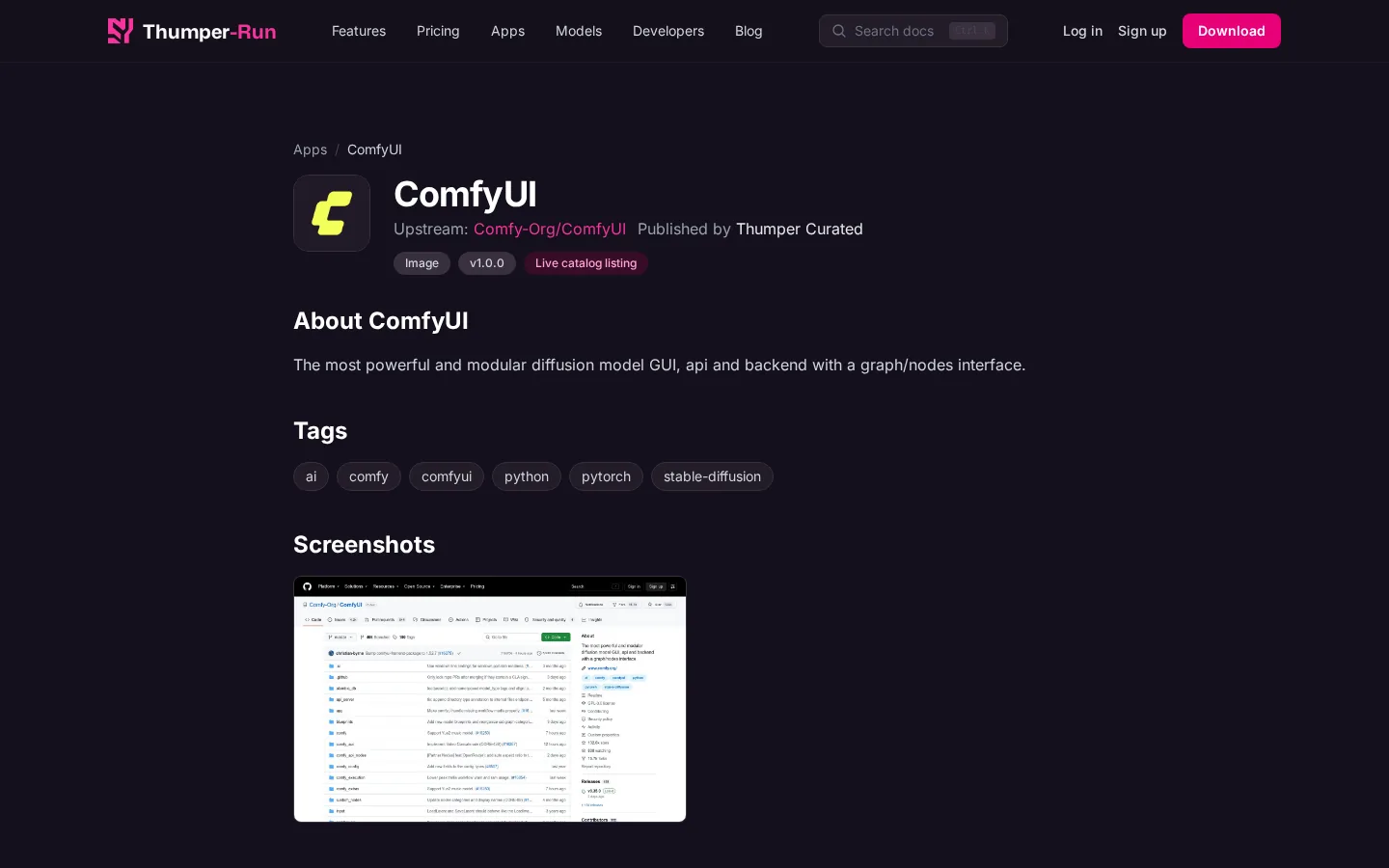
- In the catalog, find ComfyUI (or type "comfy" in the search bar)
- Click the Install button on the app card
- Wait for installation to complete (cloning repo, creating venv, installing dependencies)
- The SDXL Starter model pack downloads automatically (~6.5 GB)
Installation typically takes 3–8 minutes depending on your internet speed and whether you already have models cached. You can monitor progress in the console: it shows each stage (cloning, creating venv, pip install, model download) with progress bars and percentages.
Step 3: Generate Your First Image
Time to create your first image!
- Click Launch on the ComfyUI card
- Wait for the health check to pass (the status changes from "Starting..." to "Running")
- The default workflow loads automatically with SDXL Base
- Click the blue Queue Prompt button in the bottom-right of the canvas toolbar (or press Ctrl+Enter)
- Watch the progress bar — generation takes 10–60 seconds depending on your GPU
Step 4: Customize Your Prompt
Now let’s make it your own.
Change the Prompt
Click the text in the "CLIP Text Encode (Positive)" node and replace it with your own description:
a majestic mountain landscape at sunset, golden light,dramatic clouds, photorealistic, 8k, detailed
Adjust Settings
- Steps — more steps = more detail but slower (20–30 is typical)
- CFG Scale — how closely to follow the prompt (7–12 is typical)
- Seed — fixed seed = reproducible results; random = variety
- Resolution — 1024×1024 for SDXL (don’t go below 768 or above 1536)
Step 5: View in Gallery
Every image you generate is automatically saved and indexed in the Gallery.
- Click the Gallery icon in the left sidebar (grid icon below the dashboard). The gallery opens showing a grid of all generated images, newest first.
- Your generated images appear sorted by date (newest first)
- Click any image to see full metadata: prompt, model, steps, seed, CFG, and generation time
- Press S to star your favorites
Troubleshooting
| Problem | Cause | Fix | Details |
|---|---|---|---|
| OOM error | Not enough VRAM | Close other GPU apps, reduce resolution to 768×768 | SDXL needs ~6 GB VRAM at 1024×1024 |
| Permission denied | AppImage not executable | Run chmod +x on the AppImage file | Linux only; macOS/Windows handle this automatically |
| pip timeout | Slow/unstable network | Retry install; pip caches partial downloads | The install pipeline resumes from cached packages |
| CUDA not found | Missing NVIDIA drivers | Install CUDA 11.8+ from nvidia.com or your package manager | Run nvidia-smi to verify driver installation |
Key Takeaways
- ComfyUI installs from the catalog with one click — no Python setup needed
- The SDXL Starter model pack (~6.5 GB) downloads automatically on first install
- First generation is slower (model loading). Subsequent runs reuse the cached model.
- All generated images are saved to the Gallery with full metadata (prompt, seed, model)
- Explore settings: Steps (quality), CFG (prompt adherence), Seed (reproducibility)
Next Steps
- Try a chatbot — First Chatbot tutorial
- Try different models — browse the model management docs
- Explore other apps — try Fooocus for a simpler interface, or LTX Video for video generation
- Train a LoRA on your style — Train Your First LoRA tutorial
- ComfyUI deep dive — ComfyUI on Thumper guide
- Read the full documentation for advanced features